
Published Apr 20, 2026 · Updated Nov 7, 2026
Your iPhone camera is already a decent scanner. The right app turns a quick photo into a clean, searchable PDF that’s synced to the cloud and ready to sign or share. Whether you’re scanning contracts, receipts, tax documents, medical records, or a whiteboard after a meeting, the best document scanner apps for iPhone have quietly replaced the office scanner for most people in 2026.
A lot has changed in the last year. Microsoft Lens is gone for good, Apple added a scanner to the Preview app in iOS 26, and iScanner, one of the most-downloaded scanner apps on the App Store, barely shows up on most “best of” lists. This guide covers seven apps, including one solid pick you can pay for once and keep.
Jump to a section
Quick Picks
- Best overall: CamScanner, the most widely used scanner with the fullest feature set
- Best for Adobe users: Adobe Scan, with seamless Acrobat and Document Cloud sync
- Best AI features: iScanner, a 145M-user app with the deepest editing toolbox
- Best for speed: Genius Scan, with batch scanning and a quick scan-to-PDF flow
- Best for power users: Scanner Pro, with iCloud sync and automatic cloud export
- Best one-time purchase: TurboScan Pro, $12.99 once with no subscription
- Best for odd formats: SwiftScan, for QR codes, barcodes, receipts, and whiteboards
Document Scanner Apps Compared
| App | Best For | Price | Rating |
|---|---|---|---|
| CamScanner | Overall scanning and OCR | Free + premium | 4.8 |
| Adobe Scan | Adobe and Acrobat users | Free + premium | 4.9 |
| iScanner | AI editing and automation | Free + premium | 4.8 |
| Genius Scan | Speed and simplicity | Free + Plus | 4.9 |
| Scanner Pro | iOS power users | Free + in-app purchases | 4.9 |
| TurboScan Pro | One-time purchase | $12.99 | 4.9 |
| SwiftScan | Multi-format and barcodes | Free + premium | 4.8 |
CamScanner — Best Overall


CamScanner is the default answer for a reason. It has more than 1.8 million ratings and a 4.8-star average, and the numbers hold up when you actually use it. The scanning engine is fast and accurate: it finds document edges on its own, straightens a page photographed at an angle, and cleans up shadows and wrinkles so a crumpled receipt reads like a flat page.
Beyond the scan itself, CamScanner acts as a small document hub. Everything lands as a searchable PDF or JPG, and the OCR pulls out text you can copy. Files can be uploaded to Google Drive, Dropbox, OneDrive, and Evernote, and you can annotate, watermark, or password-protect anything before you send it. The collaboration features, shared folders and comments, are overkill for one person, but they make sense if a small team scans into the same account.
If you scan anything sensitive, compare the App Store privacy labels first; Genius Scan’s description cites on-device document processing. CamScanner is free to download, with a Premium subscription that unlocks the full OCR and cloud feature set.
Adobe Scan — Best for Adobe Users


If any part of your workflow touches Adobe’s ecosystem, Adobe Scan is the obvious choice. It scans straight to PDF, and it connects natively with Acrobat, Fill & Sign, and the broader Document Cloud. A scan taken on your phone can be open in Acrobat on your desktop moments later, ready to comment, highlight, fill forms, and sign.
The scanning quality is excellent. Automatic boundary detection and image enhancement produce sharp PDFs from difficult source material: crumpled receipts, glossy pages, documents shot at an angle. The OCR handles printed and handwritten text across multiple languages. What separates Adobe Scan from the pack isn’t any single feature. It’s integration depth. If you live in Acrobat, the phone-to-desktop handoff is built in..
The one thing to know is that Adobe Scan is a gateway, not a destination. It’s free to download and free to scan, but the moment you want more scanning power, such as combining scans or higher OCR capacity, you’re nudged toward a paid subscription. If you already pay for Acrobat, this is a no-brainer. If you don’t, the free tier is still fine for plain scanning.
iScanner — Best AI Features

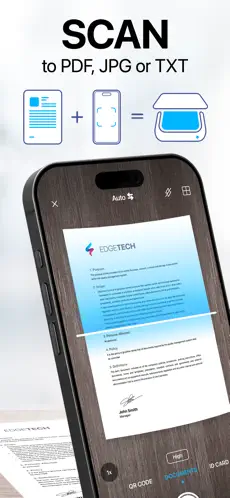
iScanner is the app most “best of” lists skip, which is strange, because it’s one of the biggest scanners on the App Store. Over 145 million users, per the developer’s own description. The pitch is simple: scan to PDF, JPG, or DOC with automatic quality correction, then edit without switching apps. Sign PDFs, fill forms, annotate, and run OCR across more than 20 languages, all in one place.
The AI features are the differentiator. The app’s in-house models detect borders, straighten skewed pages, correct color, and strip out shadows, fingerprints, and noise. It also has modes for making secure digital copies of passports, ID cards, and driver’s licenses. The math and count modes are genuinely useful if you scan anything with numbers on it. It’s the closest thing to a full document editor that still behaves like a scanner.
The catch is the paywall. iScanner’s full feature set requires an iScanner Pro subscription. If you scan once a week, the nagging gets old fast. If you scan daily for work and want the editing tools, the subscription earns its keep.
Genius Scan — Best for Speed and Simplicity

Genius Scan does one thing exceptionally well: it gets a clean scan onto your phone and into the cloud as quickly as possible. It’s built to get you from camera to PDF quickly. You open the app, point the camera, and you’re done. For a lot of people, that’s the entire job.
Under the hood there’s real engineering. Smart page detection and automatic perspective correction straighten documents and remove shadows, and batch scanning lets you shoot dozens of pages in a row and merge them into a single multi-page PDF. For sensitive documents there’s password protection and encryption. The free tier covers most everyday scanning, and Genius Scan+ adds cloud integrations and workflow automation for a small subscription.
Genius Scan is built around scanning, merging, splitting, and exporting. It scans, names, files, and syncs. If that’s all you need, it’s hard to beat for the price. If you want to do more with the file after you scan it, look at iScanner or Scanner Pro.
Scanner Pro — Best for iOS Power Users


Readdle builds some of the most polished productivity apps on the App Store, and Scanner Pro fits that standard. It’s the most deeply native scanner on this list, with iCloud sync and automatic export to cloud services.
The scanning engine is consistently strong. Automatic edge detection, multi-page documents, and automatic border detection, perspective correction, and shadow removal. Standout features include password-protected documents, signing and form filling.
The pricing shift is worth knowing. Scanner Pro is free to download with a Scanner Pro Plus subscription for the advanced features. The free tier is functional, but some features sit behind the Scanner Pro Plus subscription. For casual scanners the subscription is hard to justify; for power users who scan daily and lean on Shortcuts, it pays for itself in saved taps.
TurboScan Pro — Best One-Time Purchase


TurboScan Pro doesn’t ask you to subscribe. It’s $12.99 once, and that’s the entire payment story. For anyone tired of monthly charges for something as simple as a scanner, that alone makes it worth a look. It’s also one of the highest-rated scanners in the App Store, holding a 4.9-star average across nearly 300,000 ratings.
The app itself is focused and fast. TurboScan’s edge detection and perspective correction have been around for over a decade, and the contrast on black-and-white text is genuinely the best in this category. Color and photo modes are there too, and you can scan multi-page documents into PDFs or JPEGs, name them, organize them, and send them anywhere. The interface is dated, but the core scanning loop is rock solid.
Who should skip it? Anyone who wants an all-in-one document manager. But for the specific job of turning paper into clean PDFs without a recurring fee, it’s the pick. A free TurboScan app from the same developer is a way to try it before you buy.
SwiftScan — Best for Multi-Format Scanning


Most scanners are built for flat paper documents. SwiftScan handles those, but it also scans receipts, whiteboards, business cards, QR codes, and barcodes, which makes it the most versatile option on this list if you scan varied material rather than just standard pages.
Cloud integration is unusually broad. iCloud Drive, Google Drive, Dropbox, Evernote, and Box are supported, along with WebDAV and FTP so a scanned receipt lands in the right folder without you thinking about it. For people who want to scan something odd and have it filed correctly on autopilot, SwiftScan is the tool for the job.
The downsides: it’s the least popular app on this list by a wide margin, under 20,000 ratings to CamScanner’s 1.8 million, and the developer, Maple Media, acquires and operates apps. The core scanner is good, but the smaller community makes it a niche pick. If you need barcode and QR scanning specifically, SwiftScan handles both. If you don’t, the bigger names above are safer bets.
Don’t Overlook the Built-In Scanners
Before you download anything, know that your iPhone already scans documents in three places. The Notes app has had a “Scan Documents” option under the camera icon for years, and it captures a clean, auto-cropped PDF straight into a note. The Files app does the same into a folder. And in iOS 26, Apple added the Preview app, which can scan, edit, and sign PDFs without any third-party software, as AppleInsider walked through. For occasional simple scans, these built-in tools are genuinely fine. The apps above earn their place when you need OCR, organized storage, multi-page documents, or automated workflows.
What Happened to Microsoft Lens?
If you used Microsoft Lens, it’s gone. Microsoft moved Lens into retired status on January 9, 2026, removed it from the App Store and Google Play on February 9, 2026, and stopped letting people create new scans on March 9, 2026. The official recommendation is to move to the OneDrive app, which now has a built-in scanner, per Microsoft’s support page.
Which Document Scanner Should You Pick?
If you want the most capable scanner and don’t mind a subscription, CamScanner is the safe default. If you’re already paying for Acrobat, Adobe Scan is free value you’re leaving on the table. If you want editing tools and AI features without leaving one app, iScanner is the deepest box of tricks. If you hate subscriptions on principle, TurboScan Pro is the honest $12.99 answer.
For most people, the real decision is between CamScanner and Genius Scan. CamScanner wins on features and polish; Genius Scan wins on speed, simplicity, and privacy. Our pick is CamScanner for anyone who scans more than once a week, and Genius Scan for everyone else.
Frequently Asked Questions
What is the best free document scanner app for iPhone?
CamScanner, Adobe Scan, and Genius Scan are all free to download, with optional paid upgrades. Adobe Scan is the best free option if you already use Acrobat, since it syncs directly to Document Cloud. Genius Scan is the most straightforward;. CamScanner has the largest user base.
Can iPhone document scanner apps create searchable PDFs?
Yes. CamScanner, Adobe Scan, iScanner, and Scanner Pro all run OCR on your scans so the text becomes searchable and copyable. You can scan a printed page and then search for a specific word inside the PDF, or copy text out, instead of treating the scan as a flat image.
Is there a document scanner built into iPhone?
Yes, and it’s better than it used to be. Notes and Files both have a built-in scanner under the camera icon, and iOS 26 added the Preview app for scanning, editing, and signing PDFs. These work well for occasional scans, but they lack the OCR, cloud rules, and multi-page workflow tools of a dedicated app.
Is CamScanner safe to use on iPhone?
CamScanner’s App Store privacy labels list identifiers and usage data as used to track you, so check them before scanning sensitive documents. If you scan highly sensitive documents, compare the privacy labels of Genius Scan and Scanner Pro before choosing.
Which document scanner app has no subscription?
TurboScan Pro is the standout here: a one-time $12.99 purchase with no subscription. Apple’s built-in scanners in Notes, Files, and Preview are also completely free, though less powerful.
If you want to go fully paperless, our guide to scanning, signing, and sending PDFs for free on iPhone covers the no-cost workflow end to end. For keeping the results organized, see the best note-taking apps for iPhone, or go bigger with turning your iPad into a paperless office.
Is your app on this list? Add a free "Featured on iOS App Lists" badge to your website or press kit.