
Published Jun 10, 2026 · Updated Oct 26, 2026
iOS’s built-in accessibility features — VoiceOver, Zoom, Display Accommodations, and Spoken Content — set a high baseline. But third-party apps extend the picture meaningfully: live scene description using AI, real human volunteers on video call, text-to-speech for any document, and screen readers designed specifically for low-vision users. These apps address needs that Apple’s built-in tools don’t fully cover and have active, dedicated communities around them.
Jump to a section
Best iPhone Apps for Accessibility — Quick Picks
- Best for blind and low-vision users: Be My Eyes — real volunteers and AI describe your world in real time
- Best AI scene reader: Seeing AI — Microsoft’s narrated camera for text, people, and objects
- Best text-to-speech reader: Voice Dream Reader — premium natural voices for any document or web content
Be My Eyes — Best for Live Visual Assistance


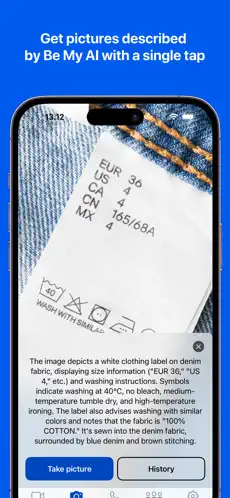 Be My Eyes connects blind and low-vision users with sighted volunteers via live video call. When you need to read a label, identify an object, navigate a space, or check whether your clothes match, you open the app, call a volunteer, and point your camera. The volunteer sees your camera feed in real time and describes what they see. The network has over 7 million volunteers speaking 185 languages, which means wait times are typically very short and language matching is usually possible.
The app added an AI assistant (Be My AI) that provides instant image description without waiting for a volunteer — useful for quick tasks like reading a menu or identifying a package. For complex or nuanced situations — navigating an unfamiliar environment, understanding a form, getting a second opinion — the human volunteer connection remains uniquely valuable in ways AI can’t replicate.
Be My Eyes is free for both blind users and volunteers. The app is always free of charge.
Seeing AI — Best AI Scene Reader

 Seeing AI is Microsoft’s AI-powered narrated camera, designed specifically for blind and low-vision users. It works through several distinct channels you switch between: Read plays text aloud as soon as it appears in front of the camera, and document alignment gives audio cues to capture a printed page. Product identifies barcodes and reads product information. People saves photos of friends and coworkers so you can recognize them later, with an estimate of their age, gender, and expression. Describe takes photos and reads you a rich description. Currency identifies banknotes. Light detects ambient light levels to help in orienting relative to windows and lamps.
The Read feature in particular, which plays text aloud as soon as it appears in front of the camera, is practically useful for countless daily tasks: reading price tags, mail, appliance controls, medicine bottles, and restaurant menus.
Seeing AI is free, developed and maintained by Microsoft at no cost to users.
Voice Dream Reader — Best Text-to-Speech Reader

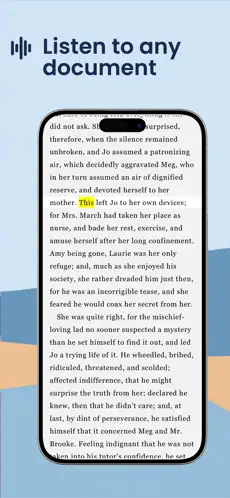 Voice Dream Reader converts virtually any text into spoken audio using high-quality natural voices. Import PDFs, Word documents, web pages, ebooks (EPUB, DOCX), and plain text files, and the app reads them aloud with natural prosody and word highlighting so you can follow along visually if needed. The voice library includes premium voices from Acapela, NeoSpeech, and Ivona that are significantly more natural than the default iOS text-to-speech engine.
The app was built for people who read differently, including readers with low vision. — anywhere that listening to text is more effective than reading it. Speed control, pronunciation editing, bookmarking, and note-taking while listening are all available. Voice Dream integrates with Bookshare (a library of accessible ebooks for people with print disabilities), Dropbox, Google Drive, and iCloud.
Voice Dream is free to download, but a subscription is required to access the app, and a free trial is offered to new users. Check current pricing in the App Store.
Built-In iOS Accessibility Features Worth Knowing
Before downloading additional apps, iOS’s built-in accessibility tools are worth configuring fully. Settings → Accessibility includes: VoiceOver (full screen reader with gesture navigation), Zoom (full-screen magnification), Display & Text Size (larger text, bold, high contrast, colour filters for colour blindness), Spoken Content (read any selected text aloud), Sound Recognition (alerts for doorbells, smoke alarms, baby crying), and AssistiveTouch (custom gesture controls). Many needs are met entirely within these built-in settings without any additional download.
Frequently Asked Questions
What is the best free accessibility app for iPhone?
Be My Eyes and Seeing AI are both completely free and address the most common needs — live visual assistance and text/scene reading respectively. The iOS built-in VoiceOver screen reader requires no download at all.
Is there an app that reads text aloud from photos on iPhone?
Seeing AI’s Read feature plays text aloud as soon as it appears in front of the camera. iOS’s built-in Live Text feature (iOS 15+) also reads text from the camera in the Camera app or from saved photos. Voice Dream Reader handles documents and imported text with higher quality voices.
What iPhone apps help with dyslexia?
Voice Dream Reader offers text-to-speech with the spoken word highlighted to improve comprehension and retention. iOS’s built-in Spoken Content feature (Settings → Accessibility → Spoken Content) reads any selected text aloud using the same technology at no cost. OpenDyslexic font support is available through third-party browsers and reading apps.
For more useful utility app recommendations, see our guide to the best iPhone apps for seniors, which covers related accessibility-focused tools including medication management and emergency medical ID.
Is your app on this list? Add a free "Featured on iOS App Lists" badge to your website or press kit.