
Published Jun 20, 2026 · Updated Sep 27, 2026
Apple Pay and the Wallet app have become two of the most underused features on iPhone — not because they aren’t useful, but because many people still don’t realize everything they can do. If you’re only using Wallet to store a single credit card or Apple Pay to buy coffee, you’re leaving a huge amount of convenience on the table.
This guide walks through every Apple Pay and Wallet feature available in 2026, from contactless payments to digital IDs, transit cards, event tickets, and even car keys, plus the four things Apple rebuilt in the iOS 27 checkout and the retailer that finally switched contactless on. Whether you’re new to iPhone or a power user, there’s something here you probably haven’t set up yet.
Updated September 2026 with the iOS 27 Apple Pay changes, the current digital-ID state list, and Walmart’s tap-to-pay rollout.
Jump to a section
What Apple Pay Actually Does
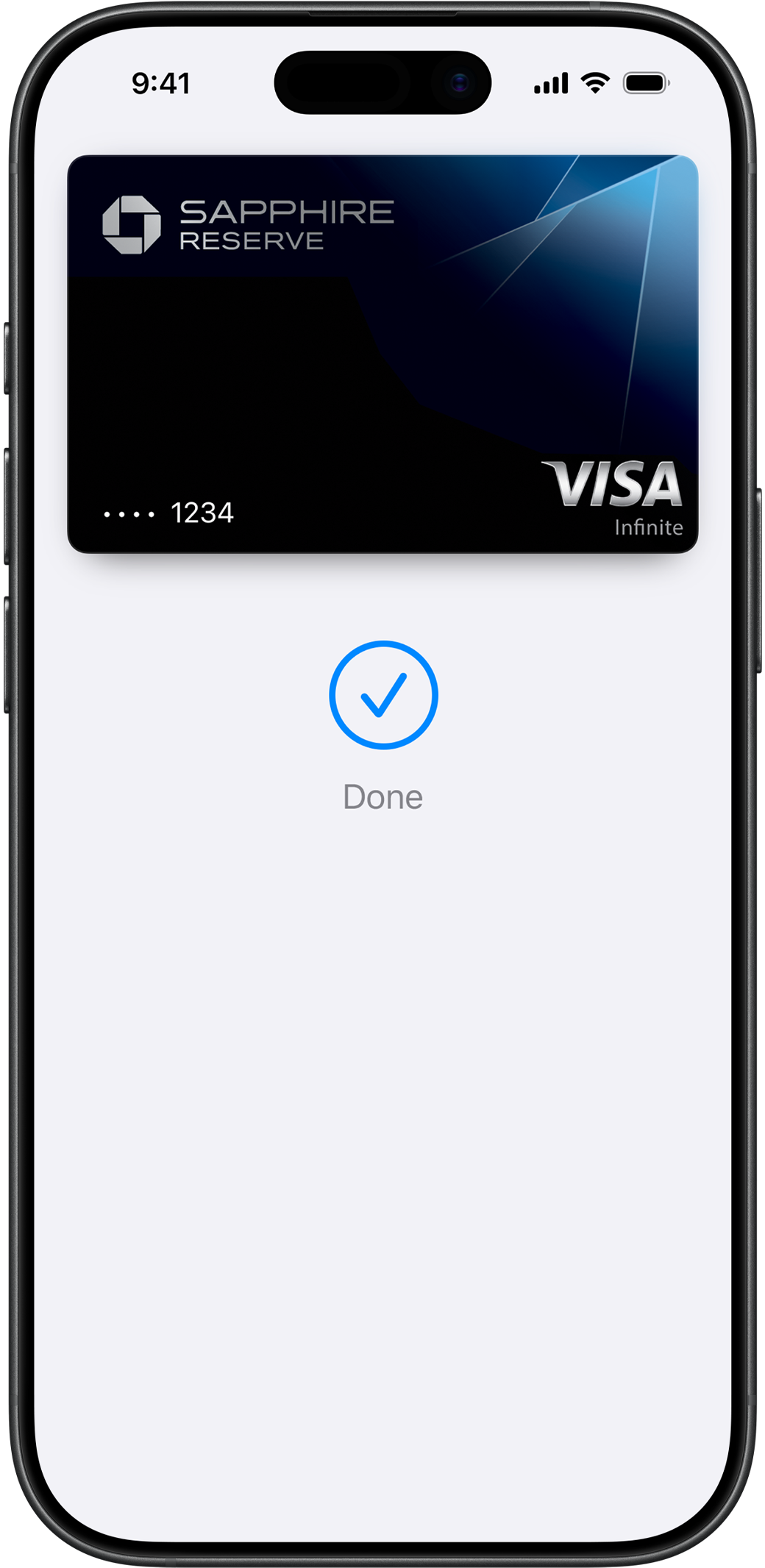
At its core, Apple Pay replaces your physical credit and debit cards with a digital version stored securely in the Wallet app. When you make a payment, Apple Pay uses a unique device account number and a one-time transaction code — your actual card number is never stored on your device or shared with merchants.
Where You Can Use Apple Pay
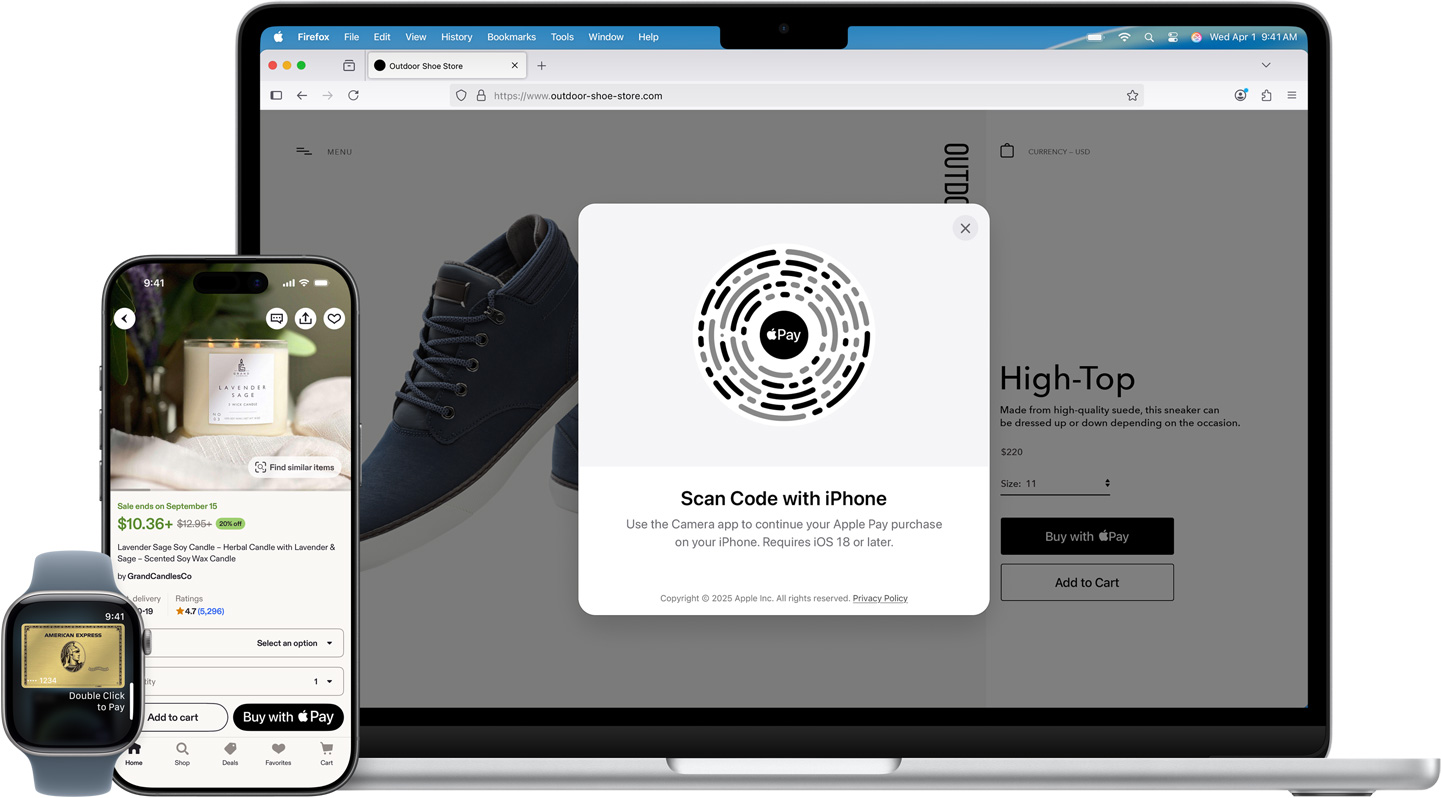
Apple Pay works in three main places:
- In Stores: Tap your iPhone or Apple Watch at any contactless payment terminal
- In Apps: Check out with Apple Pay in participating iOS apps
- On the Web: Use Apple Pay in Safari on iPhone, iPad, and Mac
Until this year that list had one enormous hole in the United States. Walmart, the country’s largest retailer, spent a decade refusing contactless payments. In August 2026 it gave in, which means Apple Pay now works at Walmart and Sam’s Club. The rollout status is further down.
How to Set Up Apple Pay
- Open the Wallet app on your iPhone
- Tap the + button in the top-right corner
- Choose Debit or Credit Card
- Position your card in the camera frame to scan it, or enter details manually
- Verify with your bank (usually via SMS or email)
What iOS 27 Changed in the Apple Pay Checkout
The version of Apple Pay you use today is not the one from iOS 26. iOS 27, released on September 14, rebuilt the
checkout sheet around the cards themselves, and added three features that change what you can do while paying.
- Swipe between cards. The main checkout screen now moves horizontally through your cards. In iOS 26
people routinely tapped the wrong control trying to switch cards; that selector is gone. - Tap a card for the full grid. Tapping the card on screen opens a grid of every card in Apple Pay,
so you can pick the right one directly instead of paging through them. - Rewards, balances and pay-later options appear before you pay. Each card surfaces what that
specific card can do for this purchase, in the sheet, rather than after the fact.
Paying with American Express points
Apple added an American Express partnership that lets you spend Membership Rewards points at checkout. When you pay
online or in an app with an Amex card stored in Apple Pay, a Use Rewards option appears next to your
points balance, and you can apply points to cover part or all of the purchase without leaving the Apple Pay sheet. The
redemption rate is 0.7 cents per point, so 10,000 points come off a purchase as $70.
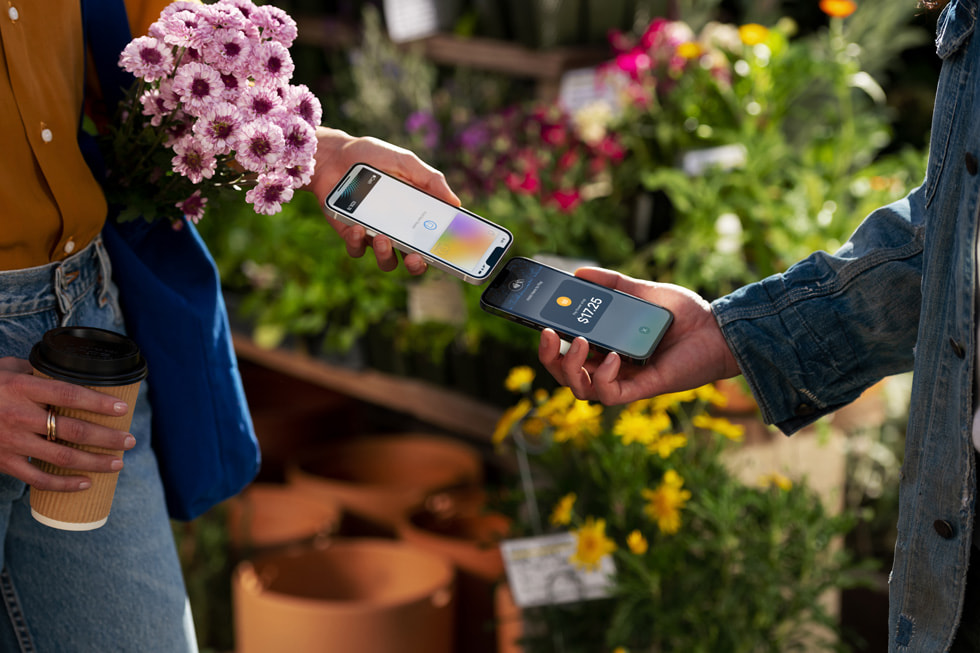
Tap to Share: tapping the merchant’s iPhone instead of a payment terminal
Tap to Share extends Tap to Pay on iPhone. Instead of tapping a card reader, you tap a participating merchant’s
iPhone. That single tap shares the details a store normally asks you for — email and contact information, shipping
address, and loyalty details — and shows your basket on screen in real time, so you can watch items and discounts land
before you commit. When the basket is right, you finish the purchase with Apple Pay on your own iPhone.
Debit-card balances and reloads
With select banks, Apple Pay now shows your debit card balance in the payment interface and lets you add money
to a supported debit card directly in Wallet or at checkout, instead of bouncing out to a banking app to top up
first.
If you have not updated yet, our iOS 27 update guide
covers the safe way to do it, and the full iOS 27
feature list shows what else arrived in the same release.
Everything Wallet Can Store
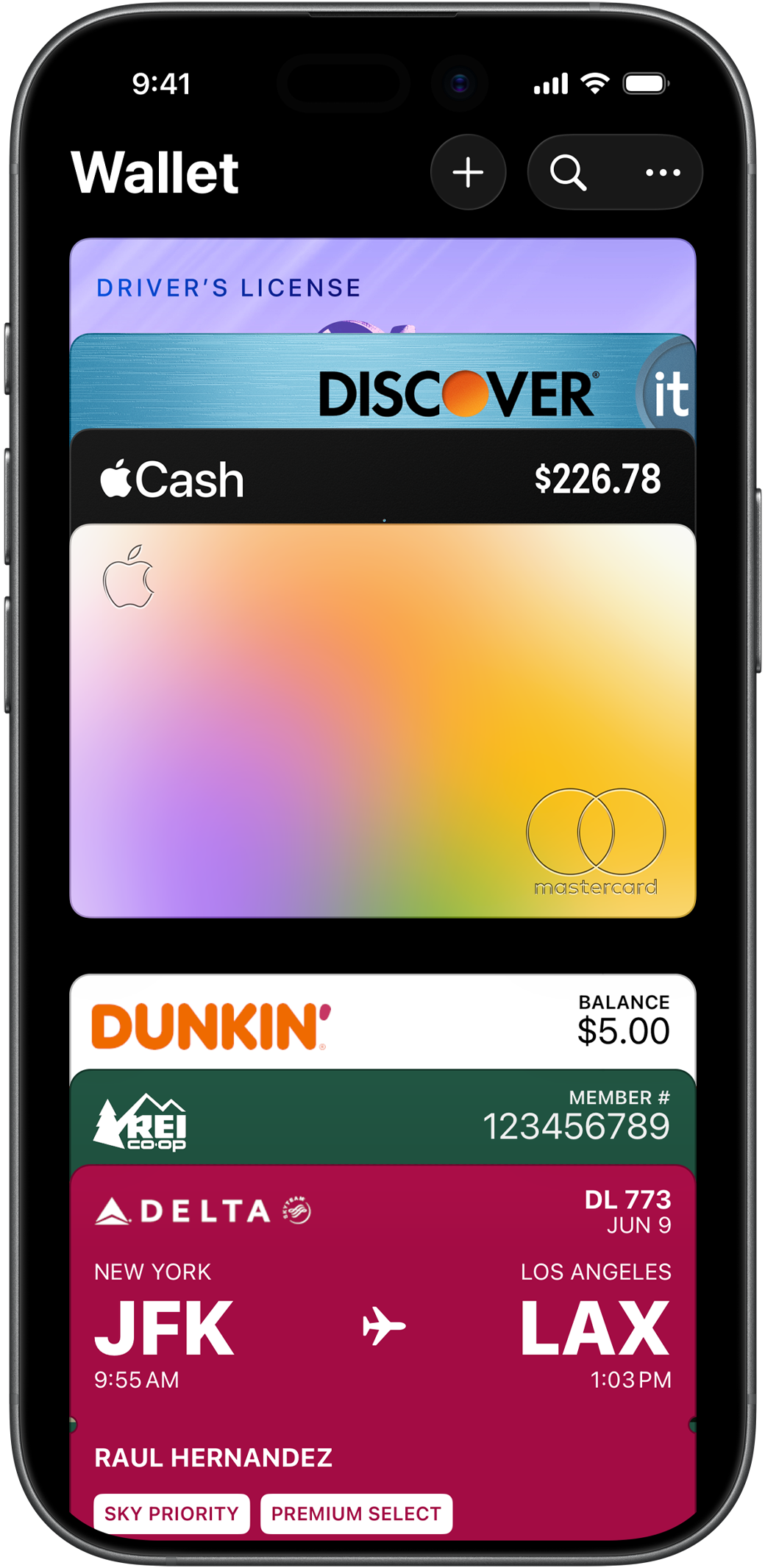
Wallet isn’t just for credit cards. In 2026, you can add:
- Credit & Debit Cards: For Apple Pay purchases
- Apple Cash: Send and receive money through Messages
- Transit Cards: Supported in major cities worldwide (New York, London, Tokyo, and more)
- Digital IDs: Driver’s licenses and state IDs, live in 16 US states plus Puerto Rico (current list and how to add yours)
- Car Keys: Unlock and start compatible vehicles with your iPhone
- Home Keys: Tap to unlock compatible smart locks
- Hotel Keys: Supported at participating hotels
- Event Tickets: Concert, sports, and theater tickets
- Boarding Passes: Add directly from airline apps
- Loyalty Cards: Store rewards cards from retailers
- Student IDs: Access campus facilities with iPhone
Digital IDs: What Is Actually Live in 2026
Most guides still say digital IDs are “supported in select US states” and leave it there. Here is the honest version
as of September 2026: Apple Wallet driver’s licenses and state IDs are live in 16 US states plus Puerto
Rico, with Utah, Kentucky and North Carolina the next states expected — North Carolina has said early 2027.
Where a digital ID works is narrower than people assume. It is accepted at eligible TSA checkpoints at US airports
(check the signage at the checkpoint) and at select businesses, venues and organizations, in person and in apps. It is
not a replacement for carrying your physical license, and it is not something you hand to a police officer during a
traffic stop.
To add yours:
- Open the Wallet app and tap the + button
- Choose Driver’s License or State ID
- Scan the front and back of your physical ID
- Complete the face and head-movement checks the app asks for
- Wait for your state to approve it — approval is not instant
Hardware and software matter here. ID in Apple Wallet needs an iPhone 8 or later on iOS 16.5 or later, with two
exceptions: California needs an iPhone XS or later on iOS 17.5 or later, and Puerto Rico needs an iPhone XS or later on
iOS 18.1 or later. Apple Watch Series 4 or later works alongside it.
Where You Can Actually Use It Now: Walmart and Sam’s Club
Walmart was the most famous Apple Pay holdout in the country. That ended in August 2026. In a post on its corporate
newsroom dated August 21, Walmart said it would begin adding Tap to Pay to its payment options at select
Walmart stores and Sam’s Club locations on August 24, with a plan to reach all US stores and clubs by the end of 2026 and
its branded fuel stations by mid-2027. On September 22, 9to5Mac reported the rollout had reached Arkansas.
Two practical details. First, Walmart calls it Tap to Pay rather than Apple Pay, so the signage in a store may never
mention Apple — if the terminal takes contactless, your iPhone works. Second, Walmart says customers can add eligible
Walmart, Sam’s Club and OnePay cards to their digital wallets, which matters if a store card is your usual way to pay.
If the reader does not respond at your local store, that store simply has not been converted yet. Walmart Pay in the
Walmart app still works everywhere in the meantime, and if you would rather buy secondhand, our roundup of the
best resale apps for iPhone covers where
people sell and shop instead.
Security and Privacy
Apple Pay is more secure than using a physical card:
- Your actual card number is never shared with merchants
- Each transaction uses a unique, one-time code
- Face ID or Touch ID is required for every payment
- If you lose your iPhone, you can suspend payments with Find My
Bottom Line
Apple Pay and Wallet shouldn’t be afterthoughts on your iPhone — they should be the first way you pay. It’s faster, more secure, and more private than pulling out a physical card. With the iOS 27 checkout rebuild, rewards you can spend before you pay, digital IDs in 16 states plus Puerto Rico, and Walmart and Sam’s Club finally accepting contactless, Wallet has become the digital hub for everything you carry in your physical wallet. If you take one thing from this guide: add your cards, then check whether your state’s ID is on the list.
For more iPhone feature guides, see our roundup of the best budget apps for iPhone.
Is your app on this list? Add a free "Featured on iOS App Lists" badge to your website or press kit.