
Published Apr 15, 2026 · Updated Oct 27, 2026
Apple’s built-in Calendar is fine until the moment it isn’t. The week you’re juggling a work project, two kids’ schedules, and a dentist appointment you keep forgetting, the default app starts to feel like a list of things rather than a plan for your day.
The good news: the App Store is full of calendar apps that actually think about how real people plan. Some are built for sharing with a partner or family. Some turn your day into a visual timeline. A couple are flat-out gorgeous. The ones below are the standouts, sorted by what they’re best at rather than by download count.
Jump to a section
Best Calendar Apps for iPhone: Quick Picks
- Best free calendar: Google Calendar, free and it pulls events from Gmail
- Best free email plus calendar: Microsoft Outlook, two tools in one app
- Best for families and couples: TimeTree, a shared calendar that actually works
- Best for daily planning: Structured, your meetings and to-dos on one timeline
- Best all-around third-party pick: Calendars by Readdle, powerful and easy to read
- Best for natural language input: Fantastical, type “lunch with Sam Friday” and it just works
- Best design: Timepage, the calendar with a heat map month view
- Best one-time purchase: BusyCal, power-user features with no subscription
Calendar Apps Compared at a Glance
| App | Best For | Price | Rating |
|---|---|---|---|
| Google Calendar | Free, cross-platform basics | Free | 4.5 |
| Microsoft Outlook | Email and calendar in one | Free | 4.8 |
| TimeTree | Shared family calendars | Free + premium | 4.9 |
| Structured | Daily timeline planning | Free + Pro | 4.8 |
| Calendars by Readdle | Readable power calendar | Free + Pro | 4.7 |
| Fantastical | Natural language events | Free + premium | 4.2 |
| Timepage | Beautiful design | Subscription | 4.6 |
| BusyCal | Power users, no subscription | $9.99 | 4.7 |
Google Calendar — Best Free Calendar App


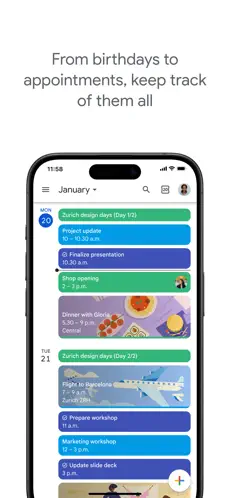 For most people the search starts and ends here. Google Calendar is free, it syncs across iPhone, iPad, Apple Watch, and your computer, and it quietly pulls events out of your Gmail. Flight reservations, hotel bookings, restaurant confirmations, concert tickets, they all appear on your calendar without you lifting a finger.
The month, week, and day views are fast and clean, and color-coding different calendars (work, personal, kids) is genuinely useful. Where Google Calendar really earns its spot is the automatic event detection. Get a flight or restaurant confirmation in Gmail, and it lands on your calendar automatically.
The trade-off is privacy. Google reads your Gmail to do this magic, and if you’d rather keep Google out of your schedule, this one’s not for you. It also won’t win any design awards. But as a free baseline that just works, nothing else comes close.
Pricing: Free to download, with optional in-app purchases. Download Google Calendar
Microsoft Outlook — Best Free Email and Calendar Combo

 If you live in Outlook for work, the iPhone app is the obvious choice, and it’s better than a lot of people expect. The calendar and email live in the same app, so accepting a meeting invite drops it straight onto your calendar without switching tools. Scheduling assistant, which shows when other attendees are free, is the kind of thing that saves real time if you book a lot of meetings.
The calendar view itself is clean and readable, and it syncs with iCloud and Google calendars too, so you can pull your personal schedule in alongside work. Outlook is also one of the few apps that handles a massive calendar gracefully, no lag even with hundreds of events.
It’s not perfect. The app pushes its “focused inbox” and Microsoft account stuff a little hard, and if you don’t use email in Outlook, carrying the whole app just for a calendar is overkill. For everyone who already lives in Microsoft’s world, though, this is the fastest path to a single organized view of your week.
Pricing: Free, with optional Microsoft 365 subscriptions. Download Microsoft Outlook
TimeTree — Best for Families and Couples

 TimeTree was built for one job: sharing a calendar with people you actually live with. You create a shared calendar, invite your partner or family, and everyone adds, edits, and sees events in real time. Each person gets their own color, so you can tell at a glance who’s picking up the kids and who has the late shift.
What makes it stickier than a shared Google Calendar is the chat layer. You can comment on events, attach photos, and message inside the app, so the “can you swap Thursday?” conversation happens right next to the schedule instead of in a separate text thread. It’s the reason TimeTree’s listing says it is loved by 75 million users worldwide. If your household calendar already lives in someone’s head, this is the fix. It pairs naturally with our guide to the best iPhone apps for couples.
The catch is that it’s a shared-calendar specialist, not a productivity tool. The free tier shows ads. For a busy family, the premium tier is worth it just to lose the ads.
Pricing: Free, with TimeTree Premium at $4.49/month or $44.99/year. Download TimeTree
Structured — Best for Daily Planning

 Structured answers a question most calendar apps ignore: what should I actually do today? It merges your calendar events with your task list into one visual timeline, so your 2 p.m. meeting and your “reply to the bank” reminder sit side by side. You drag things around to build a day that accounts for how long everything really takes. For repeating reminders with a countdown attached, Reminder & Countdown covers both jobs.
The design is clean enough that it’s become a favorite for people with ADHD or anyone who finds a standard month view overwhelming. It syncs with Apple Calendar and Reminders, and the widgets are genuinely useful, showing your next few blocks right on the home screen. If you pair it with a habit system, it plays nicely with the apps in our best habit tracker apps roundup.
The limitation is scope. Structured is a daily planner. For a place to manage shared schedules, you’ll still want something like Google Calendar or TimeTree running underneath it. It’s a companion, not a replacement.
Pricing: Free, with a Pro subscription for calendar and Reminders sync, recurring tasks, and AI day planning (roughly $3/month, with a lifetime option). Download Structured
Calendars by Readdle — Best All-Around Third-Party Calendar

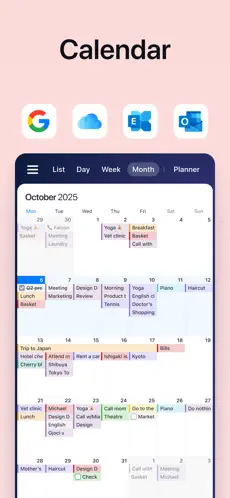 Readdle’s Calendars app sits in the sweet spot between simple and powerful. It gives you natural language input (type “coffee with Maya at 3 tomorrow” and it parses the details), a proper task list built in, and a layout that’s easier to read than Fantastical’s dense options. The week view in particular is the best on this list for actually understanding your week at a glance.
It syncs with iCloud, Google, and Outlook, and it handles tasks with due dates alongside events.. If you want one app to replace both your calendar and a basic to-do list, this is the most practical pick here.
You’ll want the Pro tier for extra features, and the exact price varies by region, which is mildly annoying. The free version is solid but deliberately basic. If you’re allergic to paid upgrades, skip to BusyCal below.
Pricing: Free, with a Calendars Pro subscription (about $3.99/month or $19.99/year)). Download Calendars by Readdle
Fantastical — Best for Natural Language Input

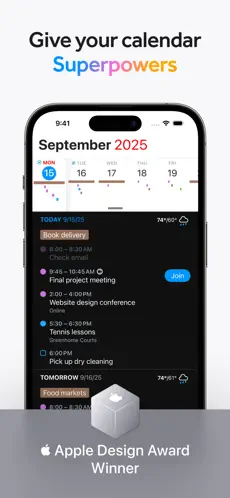 Fantastical built its reputation on one feature: its natural language engine. Type “lunch with Sam Friday at noon at the cafe” and it creates the event with the right title, time, and location, no tapping through fields. It’s fast enough that it changes how you actually add events, and once you’re used to it, going back to a standard event form feels like typing on a flip phone.
The full app is deep. Beautiful day, week, and month views, task integration with Reminders and Todoist, weather forecasts on the calendar, and a set of Apple Watch complications that are actually useful. It also parses calendar invites and events out of forwarded emails, which is handy if your schedule arrives in your inbox. PCMag and Zapier both regularly rank it as the top power-user calendar, and the polish is real.
The problem is the paywall. The free version covers basic events and tasks, and extras like calendar sets, Openings and extended weather sit behind a Flexibits Premium subscription. The rating sits lower than its rivals largely because longtime users are annoyed by how much got locked up. If you’ll use it daily, it’s worth it. If you just want to glance at a calendar, it’s not.
Pricing: Free with limited features; Flexibits Premium is roughly $4.75/month billed annually. Download Fantastical
Timepage — Best Design

 Timepage is the Moleskine of calendar apps, and it looks the part. The signature feature is a heat map month view that colors each day by how busy it is, so you can spot your packed weeks instantly. It layers in weather forecasts and travel-time estimates directly onto events, nudging you to leave early when traffic is bad.
It syncs with iCloud, Google, and Exchange, and the typography and spacing are a genuine step above almost everything else on the App Store. This is the app you pick when the default calendar’s cluttered look is half the reason you avoid looking at your schedule.
The trade-off is depth. Timepage is a lovely calendar focused on design. You’re paying for the design, and the subscription price reflects that. For a power user it’ll feel thin, but for someone who wants a calm, attractive calendar and nothing more, it’s the nicest option here.
Pricing: Subscription, roughly $19.99/year (or $3.99/month). Download Timepage
BusyCal — Best One-Time Purchase for Power Users

 BusyCal is the answer for people who’ve tried every other calendar and found each one missing something. Custom views, integrated tasks, natural language event creation, meeting scheduling tools, tags, weather, even moon phases. It syncs with iCloud, Google, Exchange, and Office 365, and it’s been a power-user staple on the Mac for years, the iPhone version is just as thorough.
The killer detail for a lot of people: it’s a one-time $9.99 purchase. No subscription. In a category where nearly every good app wants $3 to $5 a month forever, that alone makes BusyCal worth a hard look. It also works well for people who need to see their calendar across a dense work week, which is why shift workers often pair it with our roundup of the best work schedule apps for iPhone.
It’s not pretty. The interface is functional rather than elegant, and the sheer number of options can feel overwhelming if you just want a simple calendar. The icon is forgettable. But if you’re the person who reads a feature list and wants all of it, this is your app.
Pricing: $9.99 one-time, no subscription. Download BusyCal
Which Calendar App Should You Pick?
It depends on the problem you’re actually trying to solve. If you want free and effortless, start with Google Calendar, or Microsoft Outlook if your email already lives in Microsoft’s world. If the problem is coordinating a family or a partner, TimeTree is the most purpose-built tool on the list and the one that will actually get used by everyone in the house. If your real struggle is deciding what to do each day rather than where your meetings are, Structured is the pick.
For a single paid app that does the most without a subscription, BusyCal at $9.99 is the best value on the list. If you’ll pay monthly for polish and natural language speed, Fantastical is the premium choice, and if you’ll pay for pure aesthetics, Timepage is the prettiest calendar you can put on a home screen. Calendars by Readdle is the safest middle ground for most people who want power without the learning curve.
Our pick: Calendars by Readdle, for the best balance of natural language input, a clean readable layout, and built-in tasks at a reasonable price.
Frequently Asked Questions
What is the best free calendar app for iPhone?
Google Calendar is the best free option for most people. It syncs between iPhone, iPad, Apple Watch and your computer, auto-imports events from Gmail like flights and reservations, and is free to download. Microsoft Outlook is a close second if you want email and calendar in a single free app.
Can these calendar apps sync with Google Calendar and iCloud?
Yes. Most do: Calendars by Readdle, Fantastical, Timepage and BusyCal connect to both Google Calendar and iCloud, with the exception of a few that also add Exchange and Office 365. You can usually connect your accounts inside the app itself or through iPhone Settings under Calendar, then Accounts.
Which calendar app is best for sharing with a family?
TimeTree is built specifically for this. You create a shared calendar, invite family members, and everyone sees and edits events, with chat inside each event. Google Calendar can also share, but TimeTree’s chat and event chat makes it easier for a household to stay coordinated.
Do I need to pay for a good calendar app?
No. Google Calendar and Microsoft Outlook are genuinely excellent and free. Paid apps earn their price for specific needs, natural language input in Fantastical, a visual daily timeline in Structured, or a gorgeous design in Timepage. BusyCal is a one-time $9.99 with no subscription.
What’s the difference between a calendar app and a daily planner like Structured?
A calendar app manages events across days, weeks, and months. Structured is a daily planner that combines your calendar events with a task list into a single timeline for today, so it’s better for deciding what to do right now than for managing a whole month. Many people run a full calendar underneath and use Structured on top.
More Ways to Get Organized
If planning your time is the theme, a calendar is only half the system. Pair it with the best countdown apps for iPhone to track important dates, the best note-taking apps for iPhone to capture the things that don’t belong on a calendar, and our guide to the best list-making apps for the to-dos in between.
Is your app on this list? Add a free "Featured on iOS App Lists" badge to your website or press kit.